MapMoto
Make a 15- or 20-second vertical map clip from the subtitles of a YouTube Short. The MapMoto editor runs in your browser and exports a silent 1080 × 1920 MP4 at 30 fps.
1. Start with the subtitles for your map segment
Choose Import SRT in the MapMoto editor. Select an SRT file or paste its text. Try this example from a longer travel video:
1
00:00:42,000 --> 00:00:46,000
We begin in London.

2
00:00:48,537 --> 00:00:51,000
The next stop is Paris.

3
00:00:55,000 --> 00:00:58,000
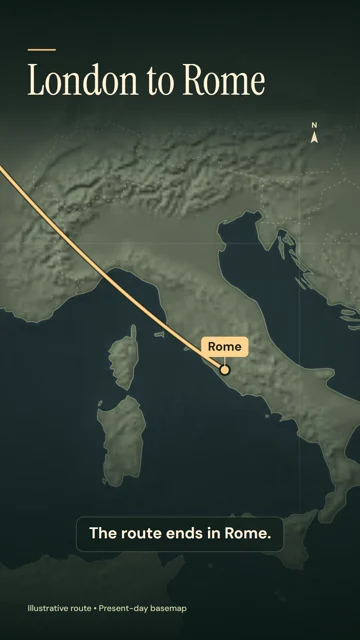
The route ends in Rome.
Set Clip starts at to 00:00:42 and keep the clip length at 20 seconds. This puts London, Paris and Rome at 0.000, 6.537 and 13.000 seconds in the exported clip.
2. Review the stops and preview the route
Choose Find places and check the country next to each suggested city. You can edit the label or use Add a place to enter coordinates for a landmark. To match a new stop to a line of narration, open Use subtitle time and choose that cue. Select Confirm route, then use Play preview or the timeline to check when each place appears.
3. Export and place the clip in your Short
Choose Export MP4 in desktop Chrome or Edge. In your video editor, put the clip above your footage at the corresponding point in the narration. For this example, place it at 00:42 in the source timeline. Keep the original audio playing underneath. Turn off Include subtitles before export if the edit already has captions.
Make the same journey without an SRT
Open the travel map animation maker to try the editable London–Paris–Rome route. Use Create from places for a new trip, or edit the sample cities and arrival times. The map draws a schematic line between your stops.
For a Short about one landmark, use map zoom animation to open on the region and zoom to a labeled pin. For an airport-to-airport transition, use flight path animation. If the footage follows a recorded hike or ride, use GPX to video to draw the track from the original coordinates.